
What are you looking for?
Where did you receive care?
-
MyVirginiaMason has been replaced with the CommonSpirit Patient Portal.
Learn more. -
Virginia Mason Medical Center & regional centers
Log in to Commonspirit Patient Portal > -
All other locations
Log in to VMFH MyChart >
Getting Started
Everything you need to start using the CommonSpirit Patient Portal, VMFH MyChart and link accounts
Before you begin
Virginia Mason Franciscan Health (VMFH) is a member of CommonSpirit Health, a national health system caring for patients and supporting healthier communities across the country. Together, we launched the CommonSpirit Patient Portal, powered by MyChart, where you can now access your health information and manage your care.
Start here-what to expect
MyVirginiaMason patient portal users:
- You will need to create a new account in the CommonSpirit Patient Portal.
- Your previous login information will not work with the CommonSpirit Patient Portal.
- After activating your account, your health information will transfer automatically to the CommonSpirit Patient Portal following your next scheduled appointment.
- Find step-by-step instructions below.
If you receive care at multiple VMFH locations:
- You may need two accounts, the CommonSpirit Patient Portal, and VMFH MyChart.
- After activating your accounts, you can easily link them together so you can access all of your health information in one place.
- Find step-by-step instructions on linking accounts below.
If you are a patient at one of the Virginia Mason Medical Center (VMMC) departments listed below:
- St. Anne Hospital Asthma, Allergy and Immunology at Virginia Mason Medical Center – Seattle (Lindeman Pavilion, Suite 101) formerly Asthma, Allergy and Immunology at Virginia Mason
- St. Anne Hospital Hematology and Oncology at Virginia Mason Medical Center – Seattle (Buck Pavilion, Suite 200) formerly Hematology and Oncology at Virginia Mason
- St. Anne Hospital Infusion at Virginia Mason Medical Center (Buck Pavilion, Suite 200) formerly Virginia Mason Medical Center – Infusion Center
- St. Anne Hospital Palliative Care at Virginia Mason Medical Center – Seattle (Buck Pavilion, Suite 200) formerly Virginia Mason Medical Center Palliative Care
- You will need two accounts – the CommonSpirit Patient Portal, and VMFH MyChart.
- After activating your accounts, you can easily link them together so you can access all of your health information in one place.
- Find step-by-step instructions on linking accounts below. Patients at these clinics should sign up for VMFH MyChart and the CommonSpirit Patient Portal
How to Access to the CommonSpirit Patient Portal:
You will be invited automatically. You may receive access when:
- You schedule an appointment (you will receive a text or email invite with an activation link)
- Your test results are available
- During check-in, check-out or discharge, staff may ask if you want an activation code sent by text or email.
If you did not receive your activation link by email or text message, you can request an activation code during check-in to use when signing up for a CommonSpirit Patient Portal account.
Setting up a patient portal account manually without an activation link or code: If you have not received an activation link or code, you can still create an account and download the mobile app. However, the process will require additional steps and more personal information to verify your identity.
Set up your CommonSpirit Patient Portal account:
-
Step 1
Click on the activation link that was sent to you from your provider via email and text message.Step 2
This link will take you directly to the CommonSpirit Patient Portal page: MyChart - Login Page.- Verify your identity using your date of birth
- Enter your email on file
- Create a strong password
Step 3
Follow security steps:- Set up two-factor authentication
- Verify authentication by entering the security code you received
Step 4
Review and accept termsStep 5
Log in and manage your healthOnce you are finished, your CommonSpirit Patient Portal account is ready to use. Bookmark the CommonSpirit Patient Portal for easy access.
Download the CommonSpirit Mobile App in the App Store (iPhone) or Google Play (Android), or search for “CommonSpirit-WA” in your app store.
-
Make sure you have your activation code ready. You may have received this code at check-in or in your After Visit Summary.
Step 1
- Access the CommonSpirit Patient Portal by going to patientportal.commonspirit.org.
OR
Download the CommonSpirit Mobile App
In the App Store (iPhone) or Google Play (Android), or by searching for “CommonSpirit-WA” in your app store.
Step 2
Open the app or webpage:- Tap Sign Up and enter your activation code
Step 3
- Verify your identity using your date of birth
- Enter your email on file
- Create a strong password
Step 4
Set up security steps:- Set up two-factor authentication
- Verify authentication by entering the security code you received
Step 5
Review and accept termsStep 6
You’re all set! Log in and manage your healthOnce you are finished, your CommonSpirit Patient Portal account is ready to use.
Download the CommonSpirit Mobile App in the App Store (iPhone) or Google Play (Android), or search for “CommonSpirit-WA” in your app store.
- Access the CommonSpirit Patient Portal by going to patientportal.commonspirit.org.
-
Step 1
In your app store, search “CommonSpirit-WA” or use the links for the App Store (iPhone) or Google Play (Android).Step 2
Download the CommonSpirit Mobile AppStep 3
Log in using your username and passwordStep 4
You’re all set! Log in and manage your health from your phone -
Signing up for the CommonSpirit Patient Portal is easiest with an activation link or code. However, if you want to create an account before you receive the link or code, you can follow the instructions below.
Download the CommonSpirit Mobile App in the App Store (iPhone) or Google Play (Android), or search for “CommonSpirit-WA” in your app store.
Step 1
On your computer, tablet or mobile device open your web browser.Step 2
Type patientportal.commonspirit.org into your web browser.Step 3
This link will take you directly to the CommonSpirit Patient Portal page:- Click the “Sign up” button
- Click the “Sign up with your information” button
- Fill out the form to verify your identity
Step 4
You may need to verify your contact information:- Verify your email address and enter the verification code
- Create a strong password
Step 5
Follow security steps:- Set up two-factor authentication
- Verify authentication by entering the security code you received
Step 6
Review and accept termsStep 7
Log in and manage your healthOnce you are finished, your CommonSpirit account is ready to use. Bookmark the CommonSpirit Patient Portal for easy access.
-
You can link patient portal accounts in the CommonSpirit Mobile App so you can access all of your health information in one place
Step 1
Open your CommonSpirit Mobile App and log in.Step 2
Click the menu button in the top left.Step 3
In the search menu, type in “Link My Accounts” and select “Link My Accounts."Step 4
Scroll to “Discover accounts to link.” In the search menu type “Catholic Health Initiatives.” Click the “Link account” button.Step 5
Log in will be required. Log in to your VMFH MyChart account.You will see information from your CommonSpirit Patient Portal and VMFH MyChart. When you see the Care Everywhere Symbol, your health information is connected.
Download the CommonSpirit Mobile App in the App Store (iPhone) or Google Play (Android) or search for “CommonSpirit-WA” in your app store.

-
Step 1
Click on the activation link that was sent to you from your provider via email and text message.Step 2
This link will take you directly to the VMFH MyChart login page:- Verify your identity using your date of birth
- Enter your email on file
- Create a strong password
Step 3
- Follow security steps
- Set up two-factor authentication
- Verify authentication by entering the security code you received
Step 4
Review and accept termsStep 5
Log in and manage your healthSave the VMFH MyChart Portal for easy access. Click the star icon or favorites in your browser to bookmark the VMFH MyChart page.
-
Make sure you have your activation code ready – check in or in your After Visit Summary (AVS).
Step 1
- Download the MyChart Epic App
- Agree to the license and privacy policy
OR
Open your browser and enter https://mychart.catholichealth.net/prd/Authentication/Login
Step 2
- Open the app or webpage
- For mobile app: Search for “Catholic Health Initiatives”
- Tap Sign Up and enter your activation code
Step 3
- Verify your identity using your date of birth
- Enter your email on file
- Create a strong password
Step 4
- Set Up Security Steps
- Set up two-factor authentication
- Verify authentication by entering the security code you received
Step 5
Review and accept termsStep 6
You’re all set! Log in and manage your healthOnce you are finished, your MyChart account is ready to use.
-
Signing up for VMFH MyChart is easiest with an activation link or code. However, if you want to create an account before you receive the link or code, you can follow the instructions below.
Step 1
Type mychart.catholichealth.net into your web browser on your computer, table or mobile device.Step 2
This link will take you directly to the VMFH MyChart page:- Click the “Sign up” button
- Click the “Sign up with your information” button
- Fill out the form to verify your identity
Step 3
- You may need to verify your contact information
- Verify your email address and enter the verification code
- Create a strong password
Step 4
- Follow security steps
- Set up two-factor authentication
- Verify authentication by entering the security code you received
Step 5
Review and accept termsStep 6
Log in and manage your healthOnce you are finished, your VMFH MyChart account is ready to use. Bookmark the VMFH MyChart portal for easy access.
-
Step 1
In your app store, search “MyChart” or use the links for the App Store (iPhone) or Google Play (Android).Step 2
Download the MyChart appStep 3
- Open the MyChart app
- Search for “Catholic Health Initiatives”
- Select Virginia Mason Franciscan Health
- Click the “Add selected organization”
Step 4
Log in using your username and passwordStep 5
You’re all set! Log in and manage your health from your phone -
Step 1
Open the MyChart App, be sure VMFH is the health system you have listed.Step 2
Swipe left to the VMFH MyChart page (see image below). If you do not have this page continue to step 3.Step 3
- Click “Add organization”
- Search for “Catholic Health Initiatives”
- Tap the blue button at the bottom “Add selected organizations”
Step 4
Log in using your username and password.Step 5
You’re all set! Log in and manage your health from your phone.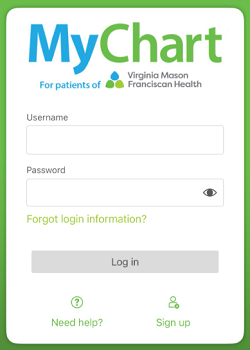
-
You can link your VMFH MyChart to the CommonSpirit Patient Mobile App so you can access all of your health information in one place.
Step 1
Open your MyChart app and log in with VMFH MyChart.Step 2
Click the menu button in the top left.Step 3
In the search menu, type in “Link My Accounts” and select “Link My Accounts.”Step 4
Scroll to “Discover accounts to link.” In the search menu type “CommonSpirit-WA.” Click the “Link account” button.Step 5
Log in will be required. Log in to your CommonSpirit account.You will see information from your VMFH MyChart and CommonSpirit Patient Portal. When you see the Care Everywhere Symbol, your health information is connected.